Initializing Balances
Before initializing balances, two setup phases are required:
The first bank balances and GL balances must be specified for every account.
Info
We recommend you prepare the latest Reconciliation Report by Account.
GL Balances
To enter GL balances, go to the Setup - Module Specific menu of Reconciliation module.
Select Balance records for GL Accounts.
On top of the GL Account list, click the Create button to open the entry form.
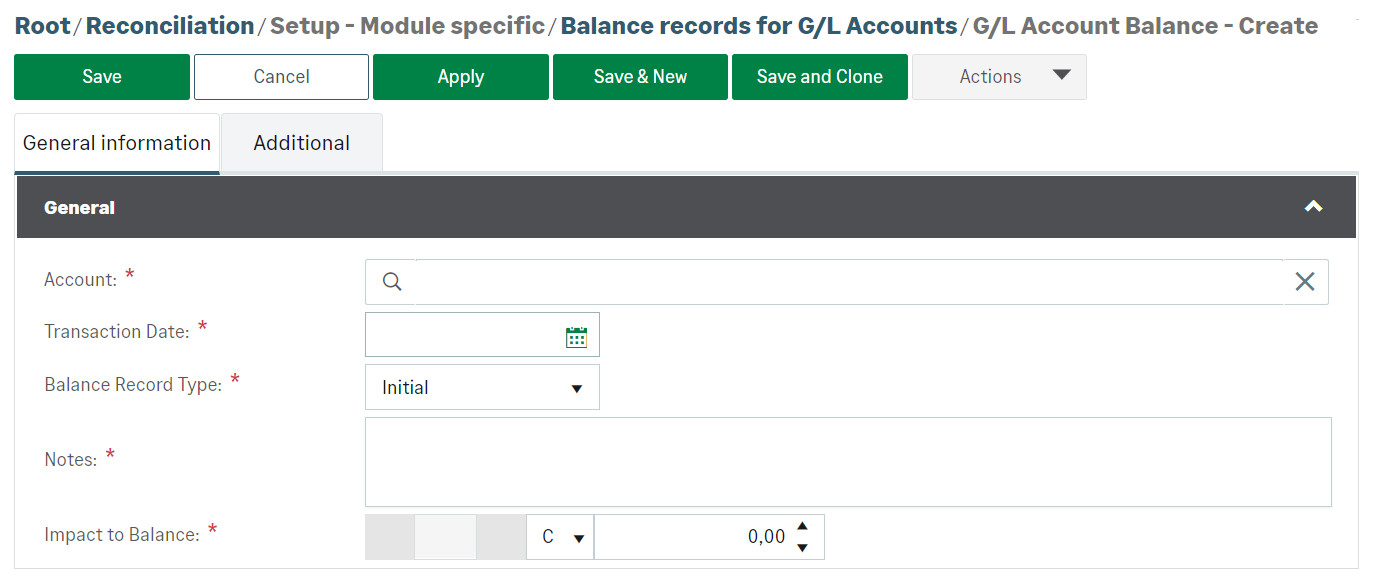
Complete all the fields of the General Information tab. Select Initial for the Balance Record Type field.
Save your entry.
Info
In the Impact to balance field: C = Credit, D = Debit.
Bank Balances
To enter bank balances, go to the Setup - Module specific menu of the Reconciliation module.
Select Balance records for Bank Accounts.
On top of the Bank Account list, click the Create button to open the entry form.
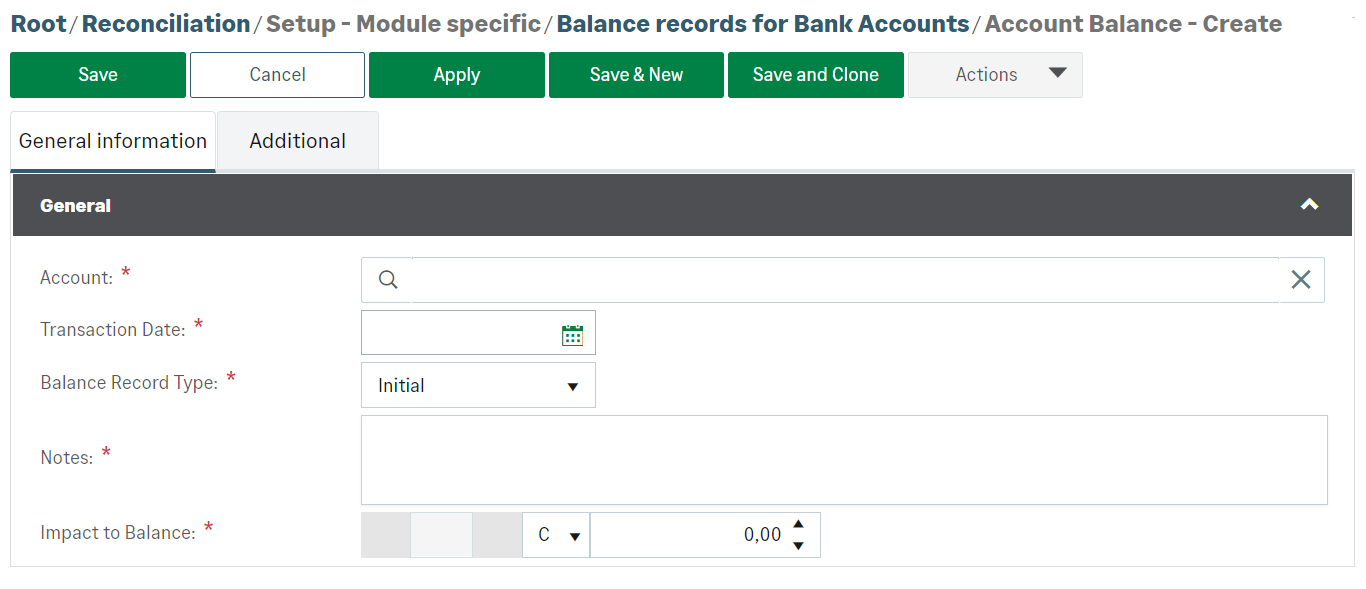
Complete the fields of the General Information tab. Select Initial for the Balance Record Type field.
Save your entry.
Info
In the Impact to balance field: C = Credit, D = Debit.
Viewing Balances
Before entering suspense items, you can check balances in two different ways in Reconciliation module.
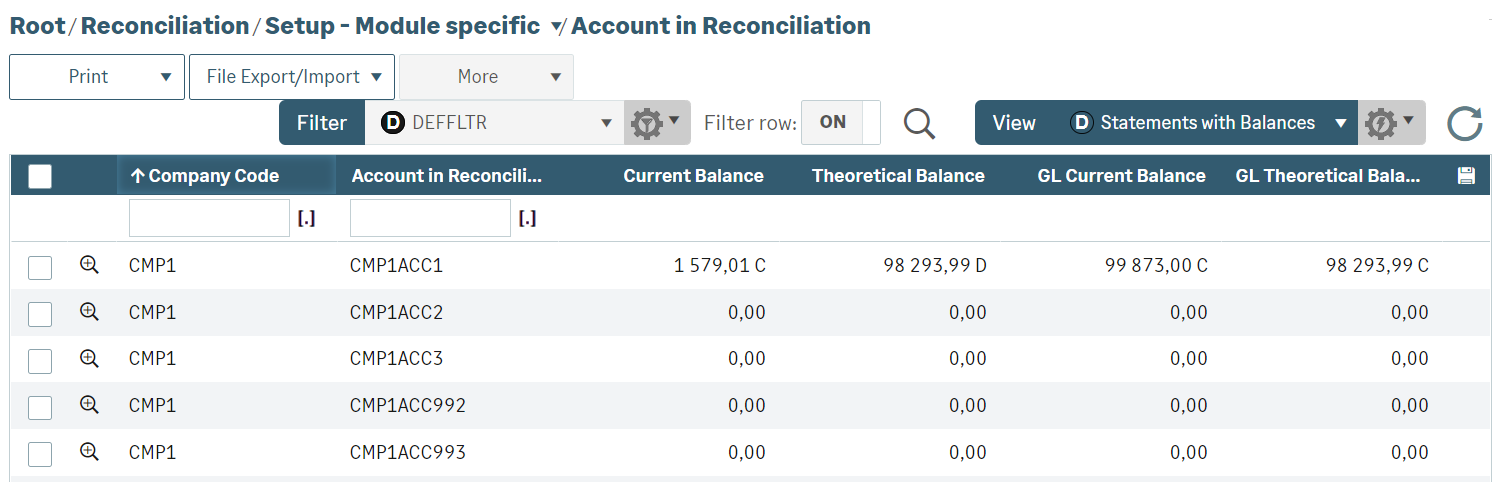
From the menu Setup - Module Specific, click Account in Reconciliation. At the top-right of the list, select the view: Statements with Balances.
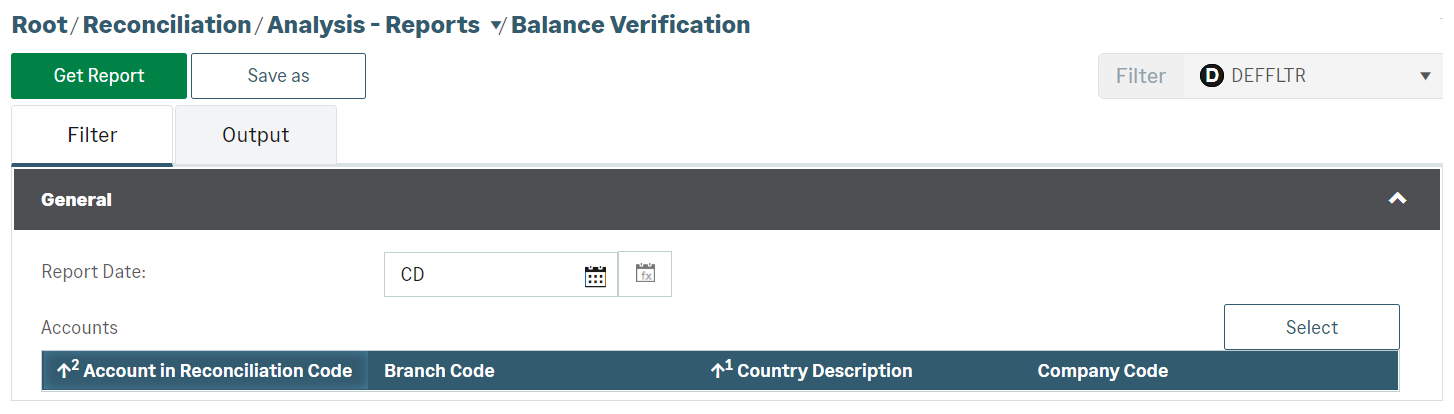
You can also check your balances through the Analyses – Reports menu by selecting the Balance Verification submenu. Complete both tabs and start the report generation using the Get Report button.