Value Conditions
Depending on the terms negotiated by the companies with their banks, the date on which the transactions are effectively credited or debited may vary.
In other words, the same company can benefit from different conditions with each of its banks. On the other hand, a bank may well grant certain companies specific conditions, even for certain accounts within the same company.
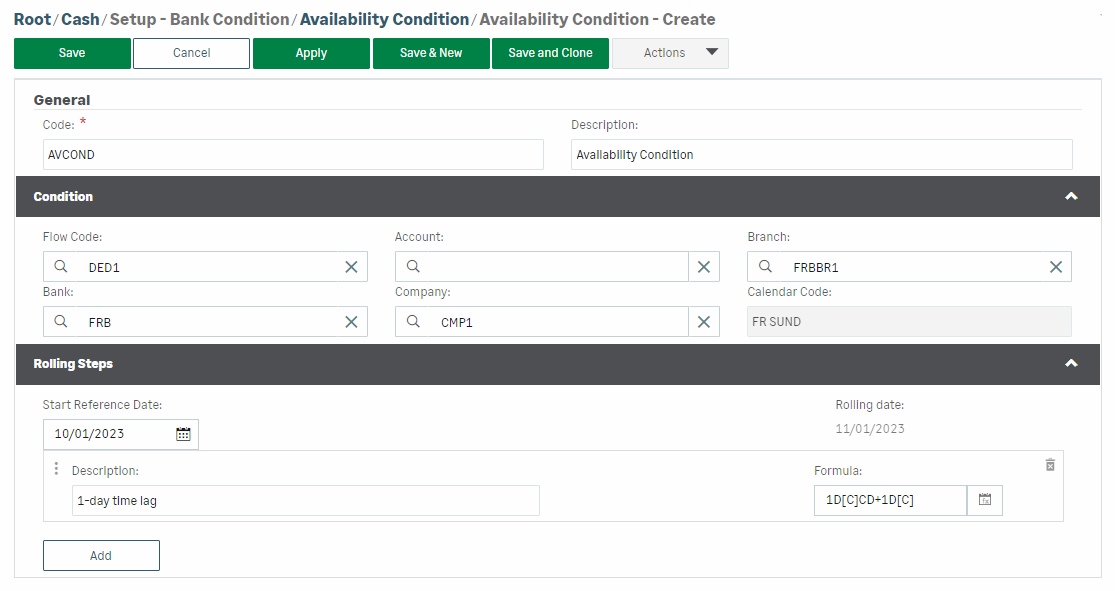
To create availability conditions, from the Cash module, select Availability Condition in the Setup - Bank Condition menu, and then click Create.
Condition
Value conditions can be defined in a global way, for all flows, banks and companies.
The Condition section lets you select the entities affected by the condition, with the following order of priority:
-
Cash flow
-
Account
-
Bank branch
-
Bank
-
Company
Leaving one of the fields blank will apply the condition to all corresponding entities. For example, if Bank is completed while Account is left empty, all the accounts attached to the selected bank will be affected by the condition.
Info
All combinations of entities are possible, however a specific combination can only be used for a unique condition. If this rule is not met, a message is displayed when attempting to save.

Rolling Steps
The Rolling Steps section allows you to define the type of deferment used when the transaction date is a closing day, and to set the rolling conditions for the flow.
Click Add to insert a new rolling step, then click the calendar button to access the parameters of the formula for calculating the rolling date.
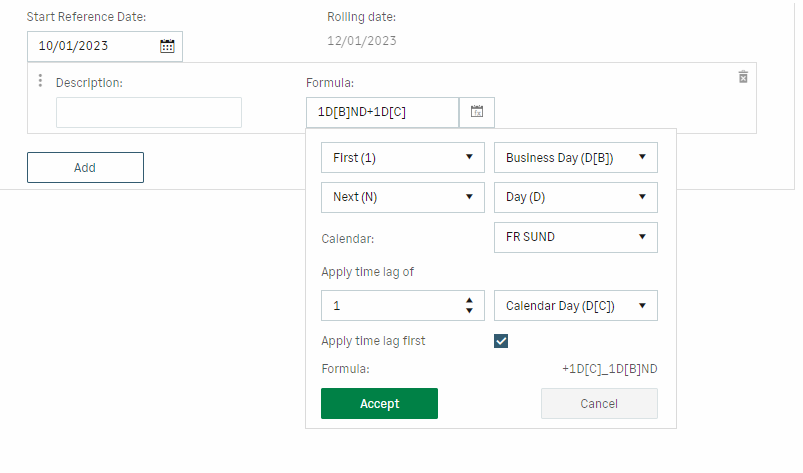
The first four lists are used to specify the deferment: no deferment, first next business day, second next business day, and so on.
In the Calendar section, you can select a calendar to apply if necessary.
In Apply time lag of, enter a number of days and select the rolling type: Calendar Day, Working Day, Business Day, Months, Years.
Info
As a reminder, business days are the days that can be legally worked as defined by the regulations in force. Business days are weekdays, Monday to Saturday inclusive. Sunday and public holidays are excluded. Legally, there are six working days per week (except public holidays).
Working days are the days when the company is actually in operation. They depend on its operating method. The working days in a company are generally from Monday to Friday inclusive, i.e. a five-day work week, although some businesses are open from Monday to Saturday inclusive. Other example: banks are usually closed on Mondays. Their working days will therefore be from Tuesday to Saturday inclusive.
Enable the Apply time lag first option if you want the number defined above to be integrated at the beginning of the calculation formula.
The result of your setting is automatically displayed in the Formula field. Click the Accept button to save your formula.
Select a date in Start Reference Date calendar to check the result of the deferment calculated in the Rolling Date field.
You can combine several formulas for calculating the deferment. To do this, click Add again to create another row.
Click Save to validate the creation of the availability condition.
Examples
| Rolling type | Time lag | Result | |
|---|---|---|---|
|
First (1) |
Calendar day (D[C]) |
0 |
No deferment. The rolling is applied as from the transaction date entered, i.e. with no deferment, even if the transaction date falls on a non-banking day. E.g.: Transaction date = 10/8/2023 -> Value date = 10/8/2023 (even if it is Sunday) |
|
First (1) |
Business day (D[B]) |
0 |
Deferment to the next business day E.g.: Transaction date = 10/8/2023 -> Value date = 10/9/2023 (deferred to Monday following Sunday 8th) E.g.: Transaction date = 10/9/2023 -> Value date = 10/9/2023 (no deferment because 9th is Monday) |
|
First (1) |
Working day (D[W]) |
0 |
Deferred to the next working day E.g.: Transaction date = 10/8/2023 -> Value date = 10/10/2023 (8th is Sunday, and 9th is Monday, closing day for the branch) E.g.: Transaction date = 10/9/2023 -> Value date = 10/10/2023 (9th is Monday, closing day for the branch) |
|
First (1) |
Calendar day (D[C]) |
1 Calendar day
(D[C]) |
1 rolling calendar day is added to create a deferment. E.g.: Transaction date = 10/7/2023 -> Value date = 10/8/2023 (even if it is Sunday) |
|
First (1) |
Business day
(D[B]) |
1 Calendar day
(D[C]) |
1 rolling calendar day is added to the deferment to the next business day. E.g.: Transaction date = 10/8/2023 -> Value date = 10/10/2023 (deferred to Monday following Sunday 8th + 1 rolling calendar day) E.g.: Transaction date = 10/9/2023 -> Value date = 10/10/2023 (no deferment because 9th is Monday+ 1 rolling calendar day) |


