To remit Transfers to bank, users need to complete different status processes to make sure all the required information pieces have been collected, checked and Validated.
The life cycle of payments starts with a specific payment order or transfer bearing the To Complete status. When all the required and specific elements are gathered, payments are validated; their life cycle ends with their assignment to a batch to be remitted to bank.
 Going from one Status to Another
In most of the cases, when incomplete, a payment (payment order or transfer) is automatically associated with the To Complete status. It keeps this status until all the required elements are gathered.
When the payment is complete, it is automatically associated with the To Validate status.
The user with the relevant rights can validate it, using the Validate option. Its status is changed to Validated. From the Validation and Process section, you can validate a set of transfers using the Validate by batch option.
Info
The Authorized status, generated by the Authorize option, is not mandatory. This status is mainly designed for companies dealing with large volumes of transactions. Actually, it represents an additional security level since the authorization is usually made by a user with higher rights than the user who validates transfers. Like for the validation process, the user can authorize several transfers in only one action, via the Authorize by batch option in the Validation and Process section.
Once validated, the transfer can be directly included within a batch and formatted to be remitted to bank. At this stage, you just need to click the Process by batch option in the Validation and Process section, and to accept the remittance proposal. From now on, the transfers bear the Remitted status.
You can also postpone the remittance and go on with the constitution of transfer batches without formatting. For this purpose, click the Process by batch option in the Validation and Process section, and disable the Generation option on the Remittance Proposal page. As a result, the transfers now bear the Prepared status until the remittance is generated.
Info
Transfers with the statuses To Validate, Validated or Authorized can be viewed by the users granted with the validation or remittance rights. If the user is not granted with the right of transfer management, he/she needs to ask another user to modify the transfer or even to delete it, if necessary.
To ask for modification, click Modification Request and the To Change status appears.
To ask for deletion, click Deletion Request and the To Delete status appears.
The transfers to change cannot be validated again unless the user opens their modification page, clicking the Change option. The transfers to delete cannot be modified or validated any longer, they can only be deleted via the Delete button.
Format and Status
The status of payments remains To Complete until all the correct elements required by the file format imposed by the bank, are gathered.
When you click OK in a page such as Domestic Transfer - Change, and that your transfer is not correct, a dialog box warns you automatically.
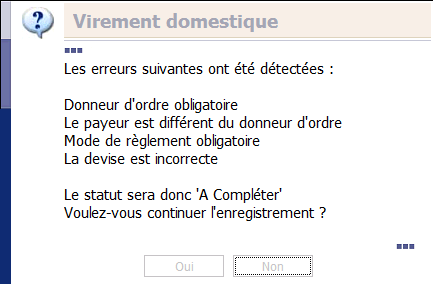
Clicking Yes implies that you will complete this transfer properly later (saved as it is presently).
Clicking No enables you to access the transfer and to correct the errors specified in the dialog box. Usually speaking, there are two kinds of message:
- You must enter a <Field Name>
in order to go past the To Complete status.
- Invalid <Field Name>
You completed this field although you must not.
Practical Application
The Payment module is designed to speed up the processing of your transactions; as a result, the following actions are usually enough for the standard remittance process.
Going from To Complete to To Validate
- From the homepage of the Payment module, click the Domestic Transfers link in the Transactions menu.
The list of the domestic transfers already integrated to the module, is displayed.
- Select the order to complete that you want to validate, then click the button
 in the horizontal toolbar.
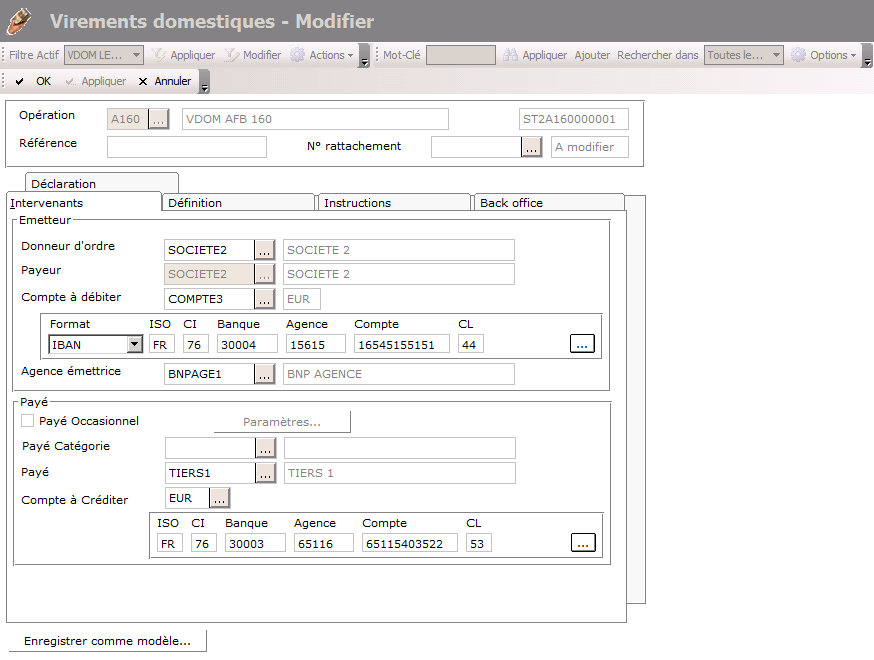
- Complete the relevant fields and click OK.
If you forget mandatory elements or if you made errors, the Domestic Transfer dialog box warns you and specifies the errors to correct.
- Note the specified errors, and click No to go on with your modifications.
- Save them by clicking OK once more.
Back to the list, you can see that the transfer now bears the To Validate status.
Going from To Validate to Validated (single transfer)
- From the homepage of the Payment module, click the Domestic Transfers link in the Transactions menu.
The list of the domestic transfers already integrated to the module, is displayed.
- Select the order to validate and click the Validate option of the Process menu.
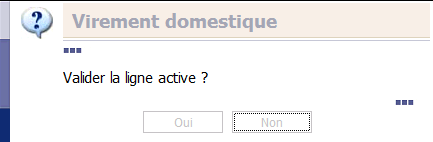
- Confirm your action by clicking Yes in the confirmation dialog box.
Going from To Validate to Validated (several transfers)
- From the homepage of the Payment module, click the Process by batch link in the Validation and Process menu.
- Complete the potential Selection page, and validate your criteria by clicking OK.

- Select the orders that you want to validate and click the Validate option of the Process menu.
- Confirm your action by clicking both Yes in the first dialog box, and OK in the second one.
Going from Validated to Remitted
- From the homepage of the Payment module, click the Process by batch link in the Validation and Process menu.
- Complete the potential Selection page, and validate your criteria by clicking OK.
The Process by batch is displayed presenting the list of the validated transfers that meet your criteria.

- Select the transfers that you want to remit, then click the button Process in the horizontal toolbar.
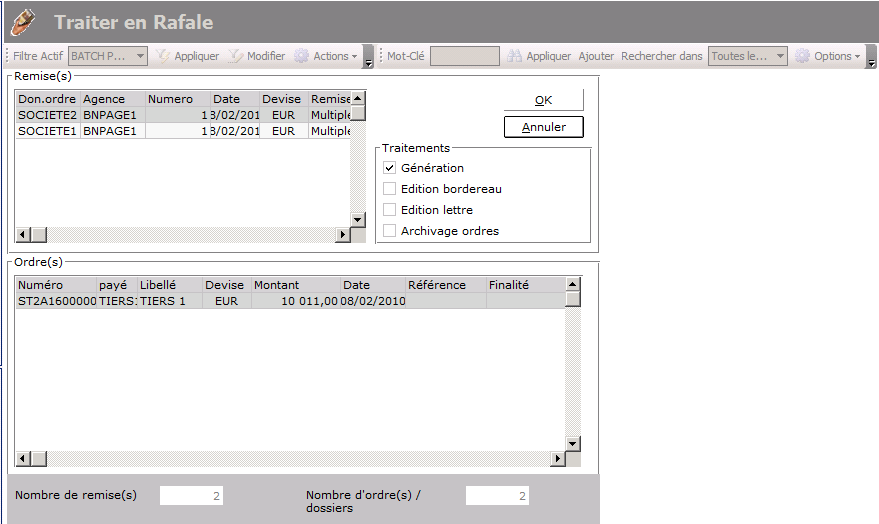
- If the transfers do not have the same format or if they are associated with different constitution rules, the Remittance Proposals dialog box appears to warn you, stating that they cannot be part of the same remittance. Click OK.
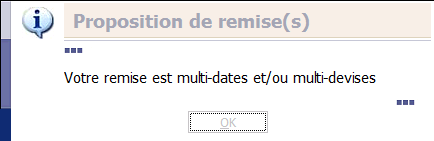
- Accept the proposal of the Remittance Proposals window, by clicking OK.
Info
The transfers sharing the same already generated remittance, all bear the Remitted status and cannot be modified.
Special Cases
FRP Treasury provides you with a high-level security, preventing you from major errors. You can actually revise a Validated transfer or a transfer To Validate, and add verification and correction steps to the standard remittance process.
Going from Validated to To Change
- From the homepage of the Payment module, click the Domestic Transfers link in the Transactions menu.
The list of the domestic transfers already integrated to the module, is displayed.
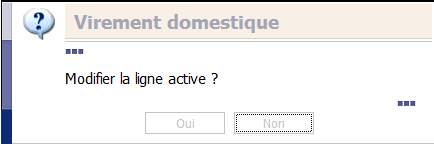
- Select the order to modify and click the Modification Request option of the Process menu.
- Confirm your action by clicking Yes in the confirmation dialog box.
Going from Validated to To Delete
- From the homepage of the Payment module, click the Domestic Transfers link in the Transactions menu.
The list of the domestic transfers already integrated to the module, is displayed.
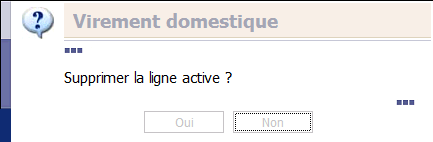
- Select the order to delete and click the Deletion Request option of the Process menu.
- Confirm your action by clicking Yes in the confirmation dialog box.
Going from Validated to Prepared
- From the homepage of the Payment module, click the Process by batch link in the Validation and Process menu.
- Complete the potential Selection page, and validate your criteria by clicking OK.
The Process by batch is displayed presenting the list of the validated transfers that meet your criteria.

- Select the transfers that you want to remit and click the Process option of the Process menu.
- If the transfers do not have the same format or if they are associated with different constitution rules, the Remittance Proposals dialog box appears to warn you, stating that they cannot be part of the same remittance. Click OK.
- In the Remittance Proposals window, disable the Generate option of the Processes section.
- Save your action by clicking OK. Back on the Process by batch page, you can see that the prepared transfers disappeared.
Going from Prepared to Remitted
- From the homepage of the Payment module, click the Domestic Transfers link in the Remittances menu.
The Domestic Remittances page is displayed, listing the Constituted Remittances (not remitted yet), and the Generated Remittances.

- Select the Constituted remittances to generate, then click Generate in the Process menu.
The list of selected remittances is displayed: click OK to confirm their generation. Here is the confirmation dialog box:
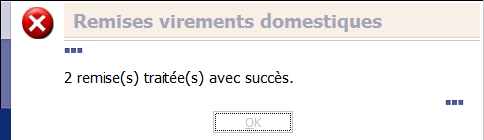
As a result, the list of the Domestic Remittances page displays the Generated Remittances only.

Info
Preapred and Remitted Transfers cannot be modified any longer.
Payments History
The history of every transfer is available from the Back-office tab in the details page for payments (for instance, <Transfer Type> - Change or <Transfer Type> - View).
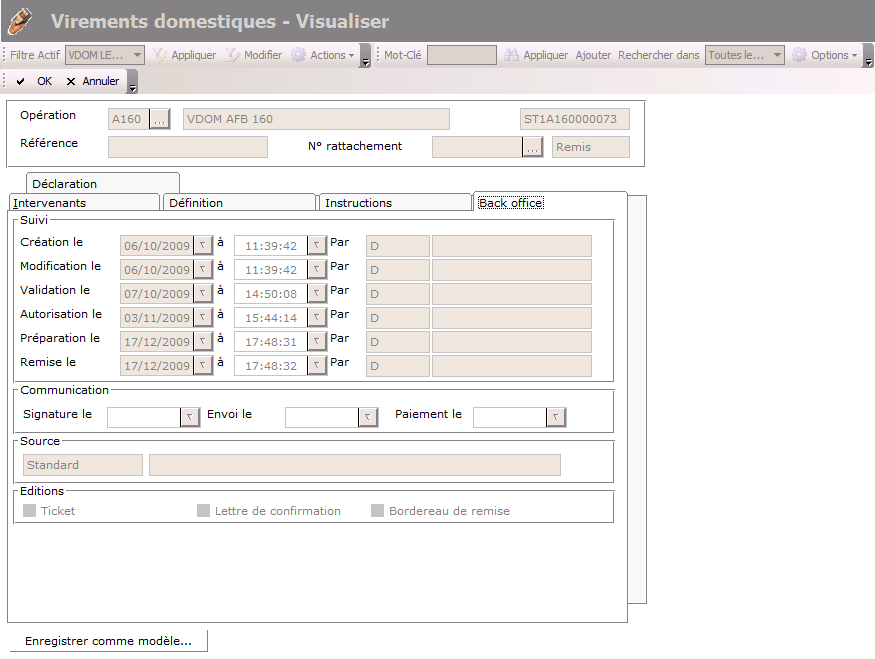
For each action on a transfer, the date, time and user are displayed and cannot be modified.
The Follow-up section deals with transfers from their creation to their formatting.


