The budget sheet enables you to complete your Treasury Budget with amounts that you calculate or enter.
To access this function, some setup is required.
For more information on:
- Common setup, see topic Setup,
- Setting up display filters for the budget sheet, see topic Display Filters.
Two modes are available for the display of budget sheets: Budget Planning and Analysis modes.
- Budget Planning Mode
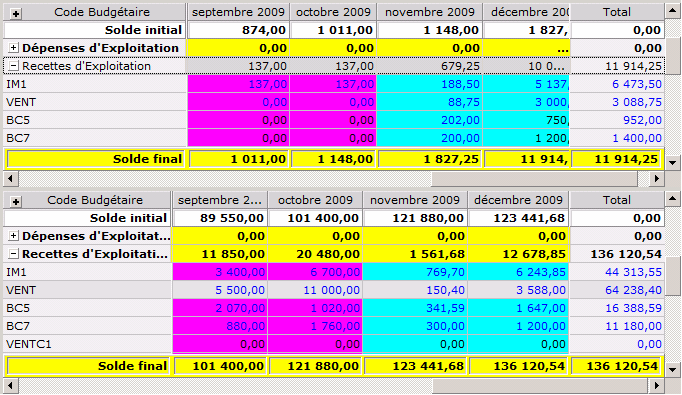
The Budget Planning mode enables you to enter amounts, create amounts calculation formulas for specific periods in the Operational or Treasury Budgets, and import the actual cash flows from the Treasury Budget.
- Analysis Mode
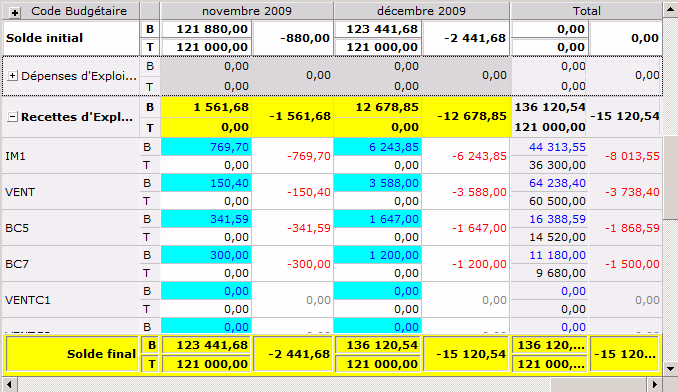
The Budget Analysis mode enables you to display the discrepancies between your treasury budget forecasts and the flows saved in Cash, and to roll Non-actual Forecasts.
This mode does not allow any input. However, you may export data to Microsoft® Excel®.
 Accessing Budget Entry Page
In the Modules Tasks pane, select the Budget sheet option in the Management folder of the Liquidity module.
- If no filter has been set up for Budget Sheets, the filter configuration page is displayed.
The filters for Budget Sheets enable you to define criteria and display settings for the function.
See topic Display Filters for more information on setting up filters for Budget Sheets.
- If a filter has already been set up, the Budget entry page is displayed.
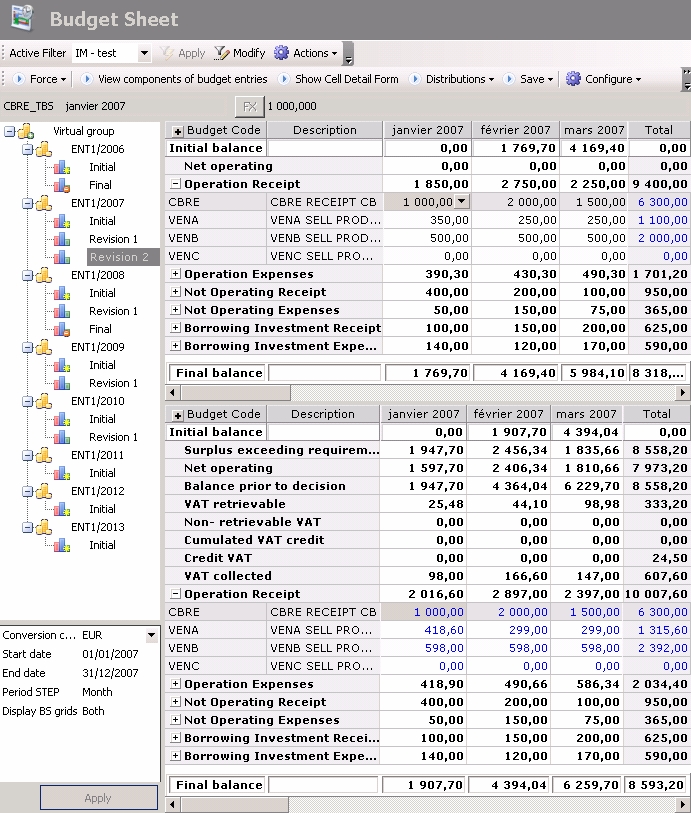
This page consists in two panes.
- The left pane is divided into two parts which display:
- on top, the tree structure of the budget exercises, presenting the elements selected in the applied display filter,
- and at the bottom, the quick filter.
For more information on the setup of quick filters, see topic Display Filters.
- The right pane displays your budget sheet for which you defined the active filter and the display preferences.
The Operational and Treasury Budgets can both be displayed on the same page, depending on the settings defined for the display filter. Each table presents amounts by period and by budget code. Budget codes are classified by category.
For more information on:
- advanced filter configuration, see topic Display Filters
- display preferences, see topic Display Preferences
For more information on setting up the panes display, see topic Panes.
Selecting and Displaying Budget Sheets
The tree view of the budget exercises which is displayed in the left pane of the budget entry page, consists of:
- On the first level, company groupings identified by the icon

- On the second level, budget exercises identified by the icon

- On the third level, budget sheet versions
- Initial, identified by the icon
 , corresponds to the first and not revised version of the exercise.
 - Revision 1, Revision 2... identified by the icon
 , correspond to successively revised versions.
 - Final, identified by the icon
 , corresponds to the last version of the closed exercise.
The fourth level displays the units, if any, set up for the company and identified by the icon  . This level enables you to view the part of the budget for the selected unit.
Refer to topic Budget Unit Level for more information.
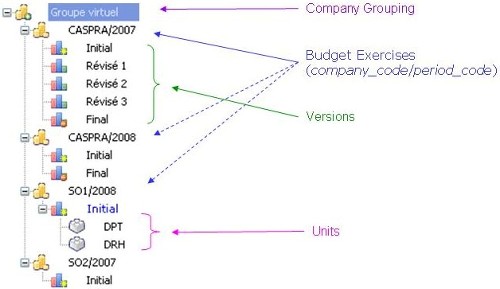
- In the tree structure of the budget exercises, click + in front of a company grouping to expand its level.
- Follow the same process to a select a budget exercise which is identified by the company's code, the period code and the currency code.
The created exercise versions are displayed under the exercise node.
When placing the cursor on the version name, you can see the version information in a tooltip: creation date, and potentially, dates of the mixed treasury budget period.
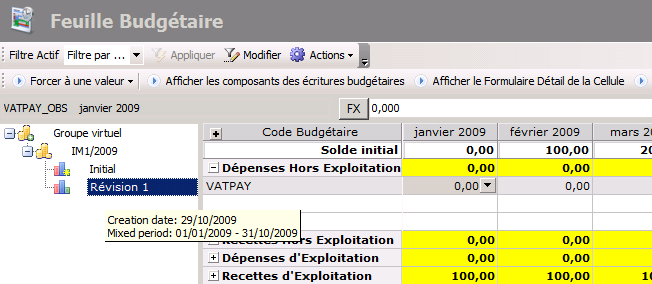
This period exists if you used the Import Actuals function.
For more information on how to use this function, see topic Importing Actuals.
- Double-click the version to view the corresponding budget version.
In Budget Planning mode, you can modify only the last version of the exercise (and not the final one).
Enabling Budget Planning Mode
- In the budget sheet, click the Change button in the Filters toolbar.
The setup page for the selected filter is displayed.
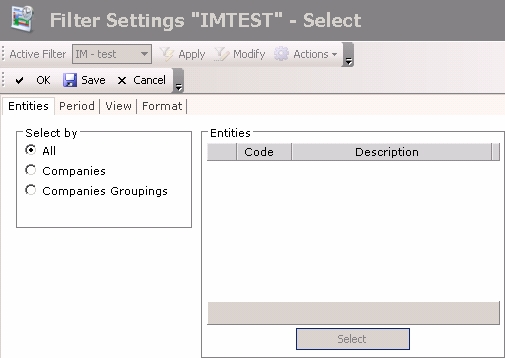
- Click on the View tab.
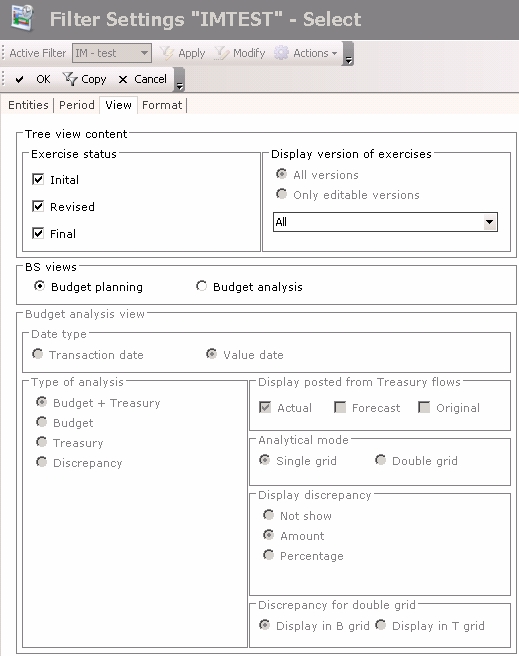
- In the BS views area, select the Budget Planning option.
Once you completed the modifcations, in the action bar at the top of the page, click:
- Save to save your modifications without leaving the current page,
- OK to save your modifications and go back to the previous page,
- Cancel to cancel your modifications and go back to the previous page.
Enabling Analysis Mode
- In the budget sheet, click the Change button in the Filters toolbar.
The setup page for the selected filter is displayed.
- Click on the View tab.
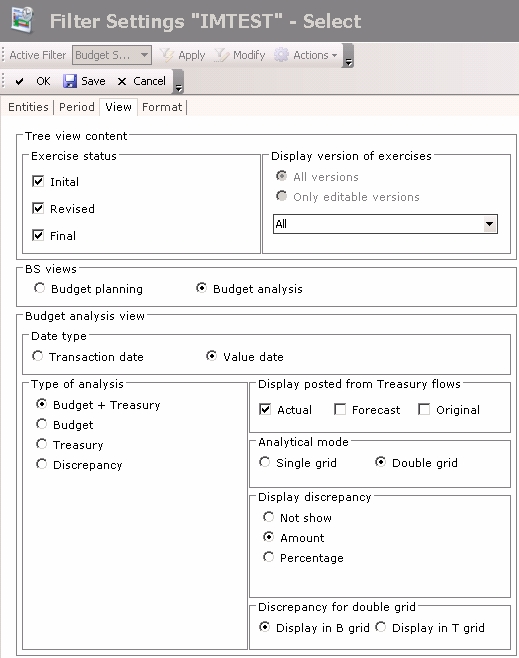
- In the BS views area, select the Budget Analysis option.
The fields of the area (specific to the budget analysis) are enabled. - Enter the budget analysis settings.
View Fields Description
| Field | Description |
|---|---|
| Date Type area | |
| Transaction Date | Enable this option to launch the comparison with the Flows transaction dates saved in the Cash module. |
| Value Date | Enable this option to launch the comparison with the Flows value dates saved in the Cash module. This option is selected by default. |
| Type of analysis area | |
| Budget + Treasury | Enable this option to display amounts from the Treasury Budget and amounts of the flows saved in the Cash module in front of the discrepancy. |
| Budget | Enable this option button to display only amounts from the Treasury Budget in front of the discrepancy. |
| Treasury | Enable this option button to display only the amounts of the flows saved in the Cash module, in front of the discrepancy. |
| Discrepancy | Enable this option to display the discrepancy only. |
| Posted from Treasury flows field This area enables the selection of statuses for the flows saved in Cash that you want to include in the analysis. You can select several statuses. |
|
| Actual | Enable this option to include the flows with the "Actual" status from the Cash module. This option is the only one to be selected by default in this area. |
| Forecast | Enable this option to include the flows with the "Confirmed Forecast" status from the Cash module. |
| Origin | Enable this option to include the flows with the "Initial Forecast" status in the Cash module (they are unconfirmed flows forecasts). |
| Budget Analysis View area This area is available if you chose to display the Treasury Budget and the flows saved in the Cashmodule. It enables you to select the display mode of both sheets. |
|
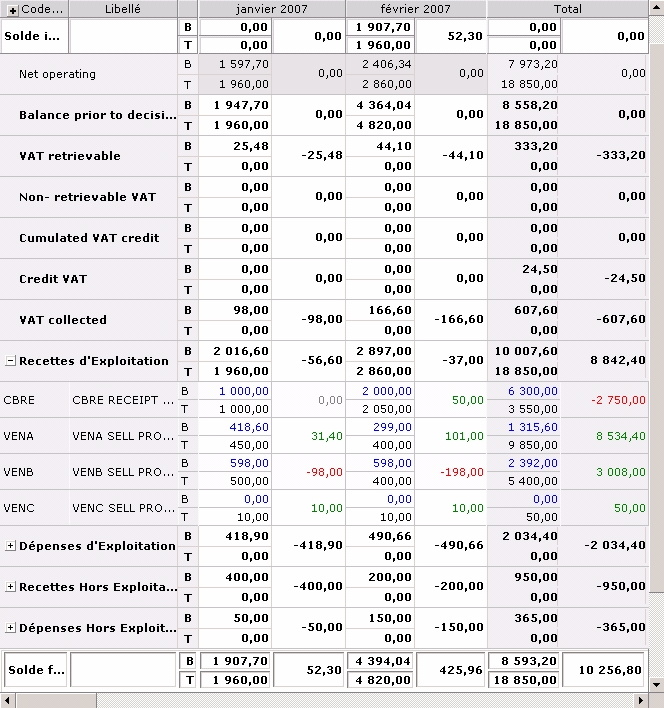
| Single Grid | Enable this option to display a single sheet. The Treasury Budget amounts are displayed on the first line called B, and the amounts of the flows saved in the Cash module are displayed on the second line called T. View Example of Single Grid |
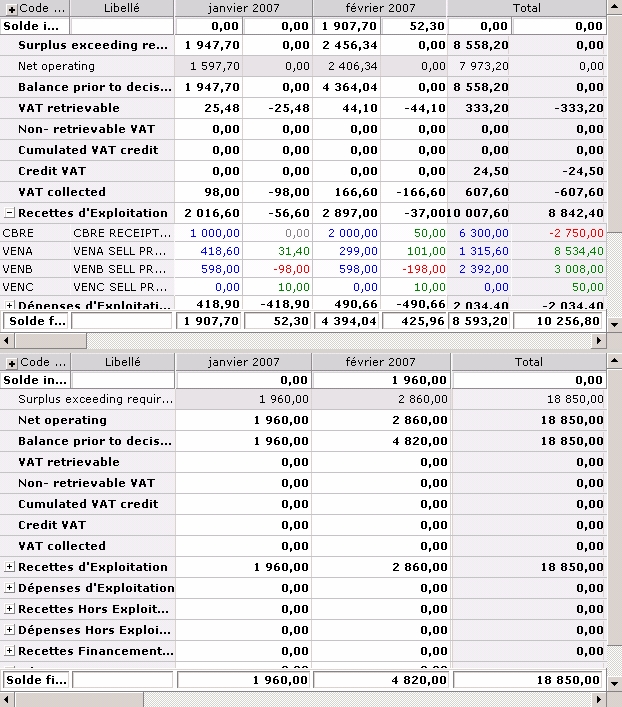
| Double Grid | Enable this option to display two budget sheets: the Treasury Budget Sheet on top, and the flows saved in the Cash module in another sheet, at the bottom of the page. View Example of Double Grid |
| Display Discrepancy area | |
| Not show | Enable this option not to display the discrepancy between the Treasury Budget and the flows saved in the Cash module. You cannot enable this option if you chose to display the discrepancy only, i.e. that the Discrepancy option is enabled in the Type of analysis area. |
| Amount | Enable this option to display the discrepancy amount between the Treasury Budget and the flows saved in the Cash module. The discrepancy amount is displayed in the column on the right of the forecast amounts column. |
| Percentage | Enable this option to display the discrepancy percentage between the Treasury Budget and the flows saved in the Cash module. The discrepancy percentage is displayed in the column on the right of the forecast amounts column. |
| Discrepancy for Double Grid area This area is enabled if you chose to display the double grid. It enables you to specify the location of the discrepancy. |
|
| Display in B Grid | Enable this option to display the discrepancy in the Treasury Budget. |
| Display in T Grid | Enable this option to display the discrepancy in the sheet of the flows saved in the Cash module. |
Once you completed the modifcations, in the action bar at the top of the page, click:
- Save to save your modifications without leaving the current page,
- OK to save your modifications and go back to the previous page,
- Cancel to cancel your modifications and go back to the previous page.