Your budget forecasts are constantly changing and the budget needs to be revised regularly.
The analysis of the discrepancies between the budget and the flows saved in Cash, enables you to revise your budget if necessary. For more information on discrepancy analysis, see topic .
The Liquidity module provides you with more easiness to create successive versions for a same budget during the revision process: for each budget revision, you create a new budget version in which you can enter your modifications and adjustments.
The previous version is not editable but can be accessed in view mode.
Important
You can revise or close your budget in Budget Planning mode only. Revision and closure are disabled in Analysis mode. For more information on the activation of the Budget Planning mode, click here.
Info
Budget exercises can be deleted provided no "Revised" or "Closed" revision has been saved for them.
 Revisions
The initial version is the first version of the budget before revision.
To revise your budget sheet and create another version, you need to be in Budget Planning mode.
For more information on the activation of the Budget Planning mode, click here.
View Revision Process
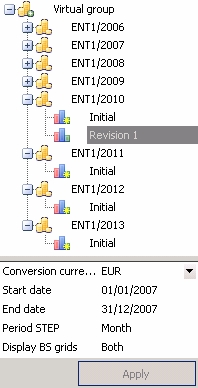
- If the version to revise is closed, double-click it in the tree view on the left of the budget sheet, to open it.
Info
You cannot revise a version previous to the last version: previous versions are only available in view mode.
- In the actions bar, click Process, then Exercise Closure.
The Close page is displayed.
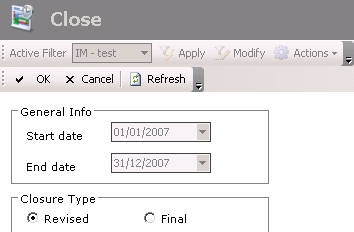
- In the Closure Type area, enable the Revised option.
- Once your entry is completed, click OK to validate it.
The Refresh button enables you to update the page and the Cancel button enables you to cancel your entry.
The version on which you were working, is locked in view mode and a new version is created by data copy, in which you can enter your budget. In the tree view on the left, the icon  is displayed for the revision version.
Exercise Closure
To close the current exercise version, you need to be in Budget Planning mode.
For more information on the activation of the Budget Planning mode, click here.
View Process of Exercise Closure
- If the version to revise is closed, double-click it in the tree view on the left of the budget sheet, to open it.
- In the actions bar, click Process, then Exercise Closure.
Info
You cannot close a version previous to the last version: previous versions are only available in view mode.
The Close page is displayed.
- In the Closure Type area, enable the Final option.
- Once your entry is completed, click OK to validate it.
The Refresh button enables you to update the page and the Cancel button enables you to cancel your entry.
The current version is closed and locked in view mode. In the tree view on the left, the icon  is displayed for this version.


