Analytic Distribution
 Analytic Distribution
The Periodic Distribution function is described in topic Analytic Distribution.
The Refresh button allows you to update the page display.
Once you completed you entry, click OK to validate, or Cancel to cancel this entry.
The last modifications are integrated into the budget sheet.
Periodic Distribution
Periodic Distribution
The Periodic Distribution function is described in topic Periodic Distribution.
The Refresh button allows you to update the page display.
Once you completed you entry, click OK to validate, or Cancel to cancel this entry.
The last modifications are integrated into the budget sheet.
12-month Distribution
12-month Distribution
This function enables you to distribute an amount over 12 months.
To access it, on the entry page for the budget:
- Select a cell, click the Distributions button in the actions bar, then, from the contextual menu, select the 12-month Distribution option
- Or right-click in a cell and select the 12-month Distribution option
The entry page for the function settings is displayed.
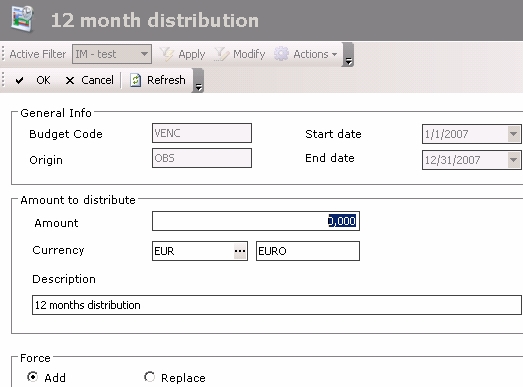
The General Info displays the budget code and the budget sheet type, as well as the start and end dates of the 12-month distribution formula.
- In the Amount to distribute area, enter the total amount to distribute over 12 months in the Amount field.
- In the Currency field, modify the selected currency by clicking the button
 , then, in the contextual window, double-click a line to select it.
The code and description of the selected currency are displayed in the setup page for 12-month distributions. - In the Description field, you can modify the default description.
- Enable the option:
- Add to add new amounts in the same cells
- Replace to overwrite the existing values in the same cells and replace them by the 12 amounts
The Refresh button allows you to update the page display.
Once you completed you entry, click OK to validate, or Cancel to cancel this entry.
The last modifications are integrated into the budget sheet.
Render Sum
Render Sum
This function enables you to add to or subtract from cells of a same budget code a same amount, on several successive periods.
The value of the added or subtracted amounts can be entered, or can depend on a percentage of existing values in the cells.
To access this function, in the entry page for the budget:
- Select a cell, click the Distributions button in the actions bar, then, from the contextual menu, select the Render Sum option
- Or right-click in a cell and select the Render Sum option
The entry page for the function settings is displayed.
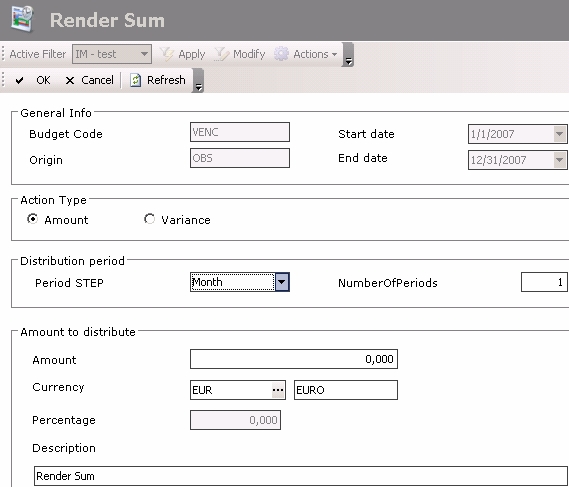
The General Info displays the budget code and the budget sheet type, as well as the start and end dates of the render sum. These dates are calculated over a twelve-month period as from the start date of the selected cell.
- In the Action Type area, enable the option:
- Amount to add the same amount to several cells of the budget sheet
- Variance to add to or subtract from several cells amounts a percentage of their value
- In the Distribution Period area, select the standard period length (a month by default) in the Distribution Step field, then the number of periods to which the render sum will be applied in the Number of periods field.
- In the following area:
- If you enabled the Amount option above, enter the total amount to add or subtract (with a minus sign before the amount without space) in the Amount field.
In the Currency field, modify the selected currency by clicking the button , then, in the contextual window, double-click a line to select a currency.
The code and description of the selected currency are displayed in the entry page for render sum settings.
The Percentage field is disabled for a render sum by variance.
- If you enabled the Percentage option above, enter the number of the percentage in the Percentage field.
The Amount and Currency fields which are specific to render sum by amounts entry, are disabled.
- In the Description field, you can modify the default description.
The Refresh button allows you to update the page display.
Once you completed you entry, click OK to validate, or Cancel to cancel this entry.
The last modifications are integrated into the budget sheet.


