Setting up the VAT rate enables the automatic calculation of VAT elements in the Treasury Budget.
You need to define a VAT rate for each budget code.
For example, you can create two VAT rates, one of 5.5%, the other of 19.6%, to apply them to sold or purchased products in compliance with the current law.
 Accessing Setup Page for VAT Rates
- In the Modules Tasks pane, select the Setup module from the accordion tab.
The tasks of the module are displayed in this pane. - Select the Setup VAT option in the Setup file of this module.
The VAT page is displayed with the list of the set up VAT rates in a table. The table specifies the code and description of each VAT rate.
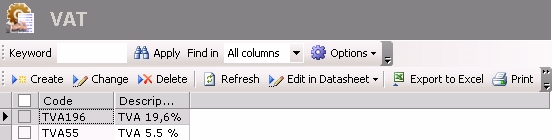
For more information on:
- Reorganization of the lines display in the table, click here
- how to search text in the table, click here
- how to create lines, see the topic below,
- modifying lines in the table, click here
- deleting lines in the table, click here
You can change the layout of the table: columns display, filtering on selection criteria, lines grouping according to criteria, etc. For more information on this feature, see topic Table Reorganization.
Creating VAT Rates
- Click the Create button.
The creation page is displayed.
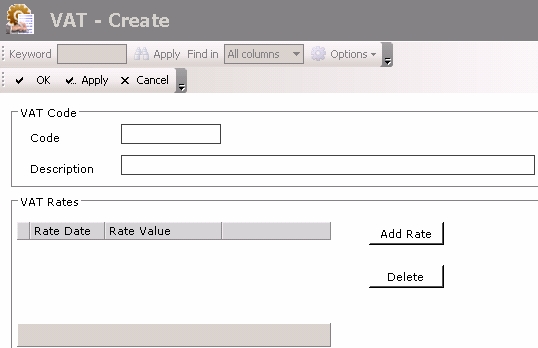
- In the VAT Code area, enter a unique code and a description for the VAT rate.
- In the VAT Rate area, click the Add Rate button.
A line is automatically added to the list of VAT values with today's date as the start date.
- If necessary, change the start date of the value application in the Rate Date column.
- Enter a rate value between 0 and 100 in the Rate Value column.
For a same VAT rate, you can define different values for different periods: for example, a VAT rate of 19.6% as from 1/1/2010 and a rate of 19.7% as from 12/31/2012.
- To add another rate value, click the Add Rate button again and repeat the previous steps.
To delete a rate value, click the Delete button.
- Click the following buttons, as needed:
- Apply to save the setup of the VAT rate and create another one
- OK to save the setup of the VAT rate and go back to the list of the set up VAT rates
- Cancel to cancel the setup of the VAT rate


