Some transactions can be rejected during the import of a file from an external system.
The rejected transactions are not integrated into the budget. They are saved in a history with the reasons for reject specifying the missing or inconsistent information compared with Sage XRT Treasury data repository.
For example, a reject is generated if the company code or the budget code specified in the file has no equivalence in the database, or if the import terms (target budget sheet, add or replace existing transactions, etc.) have not been defined.
The reject history includes all information on the rejected transactions, including the reason for reject. You can view this history, correct errors and re-import the rejected transactions.
 Accessing Management Page for Rejects
In the Modules Tasks pane, select the Rejected Budget Transactions option in the Import/Export folder of the Liquidity module.
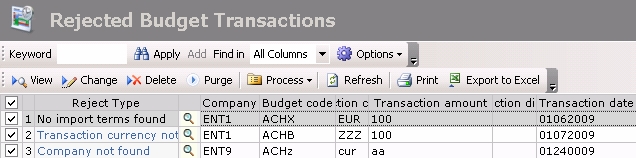
The management page for rejects is displayed with the list of rejected transactions in a table.
The table displays the reason for reject and all information on the transaction: company, budget code, currency, amount, transaction date, description.
Info
All transactions are selected by default. If you want to cancel this selection and select a specific line, deselect the first option of the table and select the option on the relevant line.
To view, correct, purge or relaunch the import of the rejected transactions, see the topics below.
For more information on:
- Reorganization of the lines display in the table, click here
- how to search text in the table, click here
- how to delete lines in the table, click here
Viewing Details of Rejected Transactions
In the management page for rejects, select the line(s) to view and click the View button.
The detailed information on the transaction and the reasons for reject are displayed in a new page.
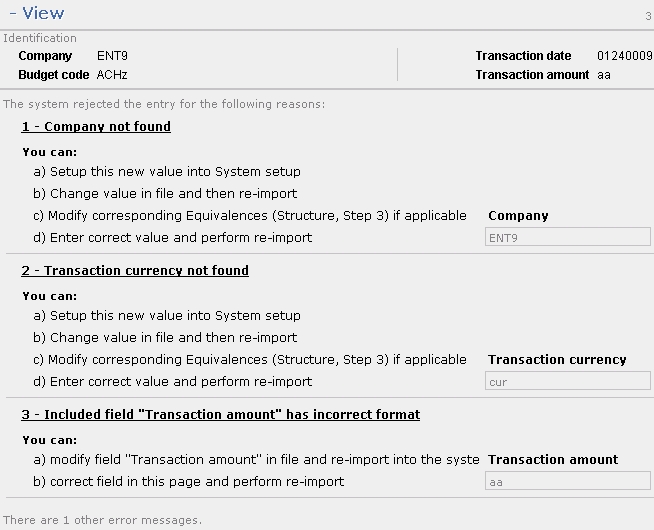
- If you selected several transactions to view, click the Next Entry button to view the following transaction.
- If there are other error messages for the selected transaction, that are not displayed in the current page, use the Previous Error Message and Next Error Message buttons to display the pages with the details of other error messages.
- To redisplay the management page for rejects, click the Cancel button.
Manual Correction of the Rejected Transactions
- In the management page for rejects, select one or several transactions and click Change in the actions bar at the top of the page.
The detailed information on the transaction and the reasons for reject are displayed in a new page.
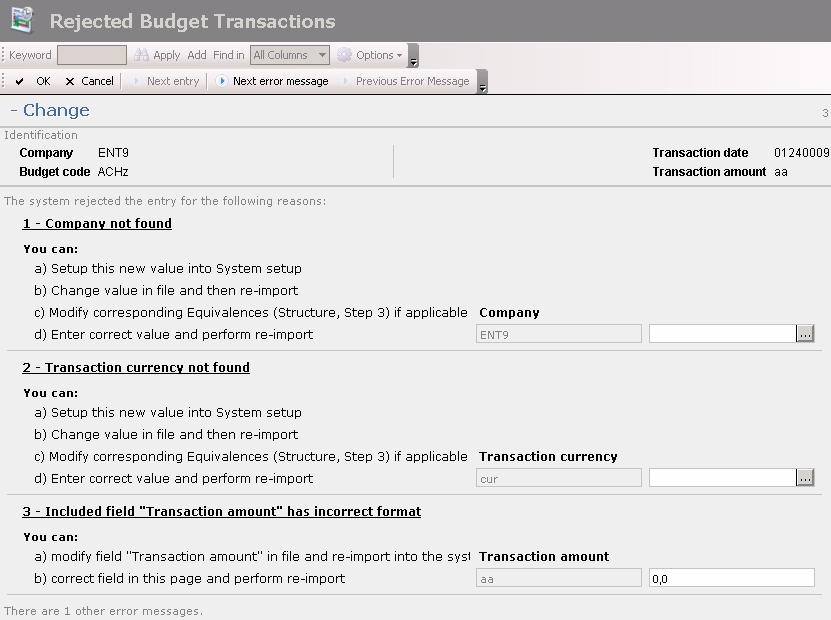
Each error message includes an entry field that enables you to correct the error, except for the case of missing import terms.
- Correct each incorrect data by entering a new value in the entry field, or by using the button
 to select a value in the list.
In the case of missing import terms, you need to set up new import terms. For this, you need to quit the current page and access the setup page for import terms. See topic Setup of the Transactions Import Terms for more information.
- If there are other error messages for the selected transaction, that are not displayed in the current page, use the Previous Error Message and Next Error Message buttons to display the pages with the details of other error messages.
- If you selected several transactions to correct, click the Next Entry button to view the following transaction.
- Once the correction is completed, click the OK button to save your modifications or Cancel to cancel them.
The management page for Rejects is displayed again.
Now that transactions are corrected, you can relaunch an import task on the rejected transactions.
Purging Rejected Transactions
In the actions bar of the management page for rejects, click the Purge button, then OK in the dialog box of purge confirmation.
The history of rejected transactions is purged.
Info
This is an irreversible action. Before purging the history of rejected transactions, make sure that this information will not be needed later on.
Relaunching Transactions Import
- In the actions bar of the management page for Rejects, click Process, then Import.
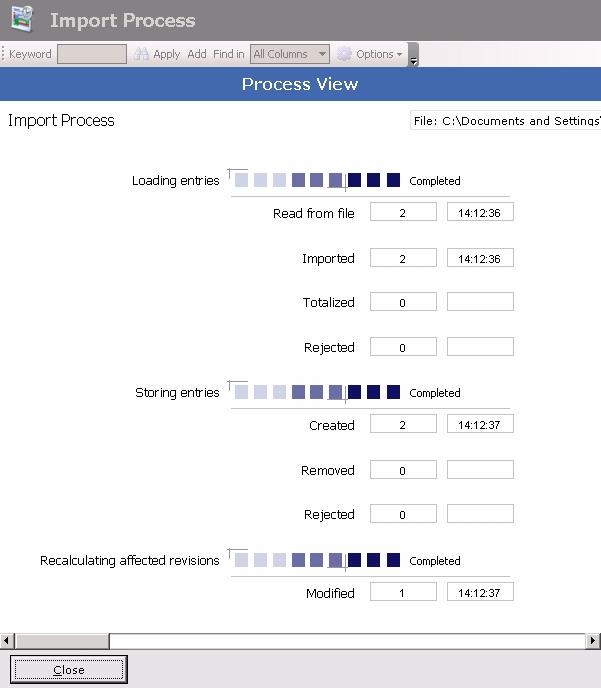
The import is launched and a new page is displayed showing the task progress.
Info
The Totalized field specifies the number of transactions that have been totalized according to the criteria defined in the Total floor area in the setup page for import terms.
- If you want to stop the task, click the Cancel button at the bottom of the page.
- Once the task is completed, click the Close button at the bottom of the page.
The management page for rejects is redisplayed showing the list of transactions with errors updated since the last import.
Transactions imported without error in the Liquidity module do not appear on the list.


