Access Rights
You can control the access to reports on Sage XRT Solution platform through the creation of a dedicated Security Policy Set of access and action rights granted to a specific user type. from the Users menu in Administration module.
Managing access to all reports of a same type
Defining a security policy for one type of report enables you to control the access to all these reports in a single operation.
-
In the Security Policy submenu, click the Create button.
-
In the General Information tab, enter a name for the new policy in the Code field.
-
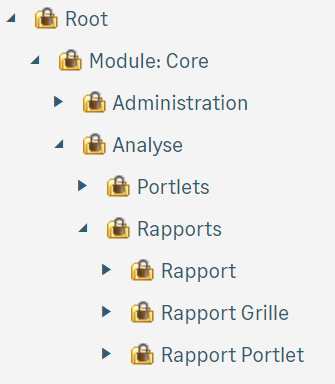
In the Security tab, expand the treeview to access this level: Module: Core — Analysis — Reports.
-
Expand the report type for which you want to control the access.
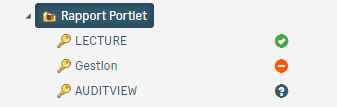
On the line corresponding to the Management right (creation and modification of filters, views and templates), or on the one corresponding to the Read right (view only), click the icon to authorize the right (tick on green background), or click twice to forbid it (wrong-way sign). The question mark icon shows that you policy ignores the right marked.
-
Click Save.
You can now use this security policy dedicated to reports to manage the access rights of a specific Role List of all the access rights (see also: security policy) linked to users..
-
In Users - Role submenu of Administration module, select an existing role, then click the edition icon (or click Create if you want to define a new role).
-
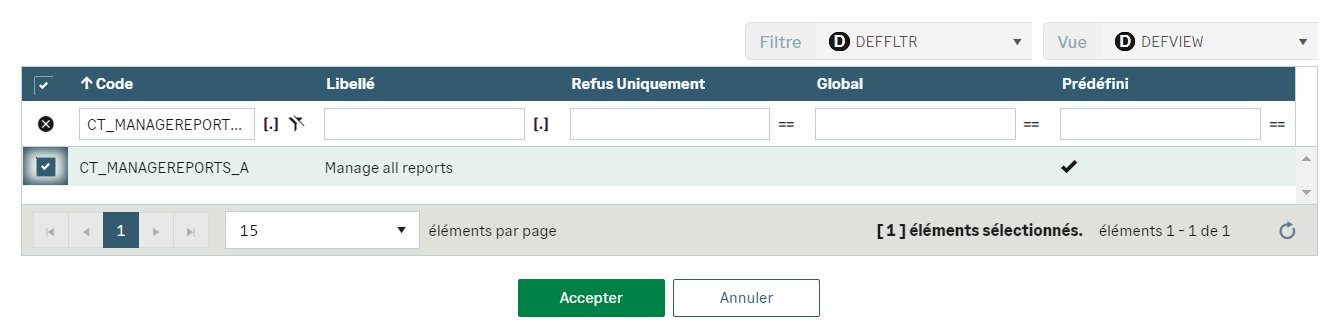
In the Access Authorizations tab, click the Select button.
-
Activate the security policy and click Accept.
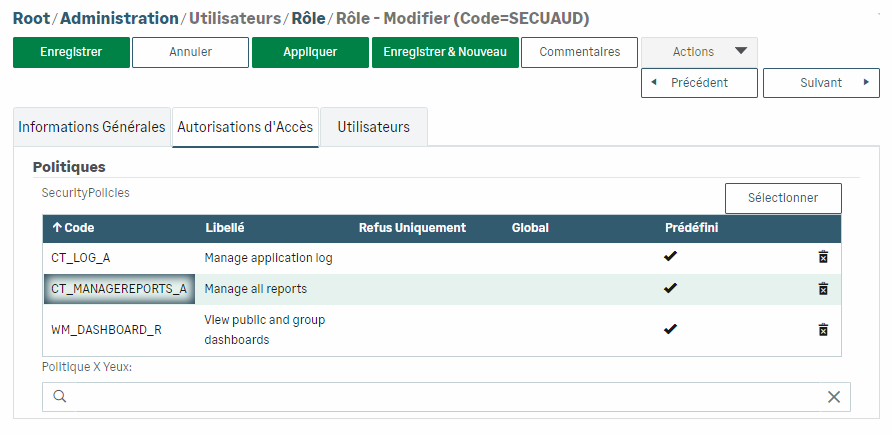
The new policy appears in the list of Access Authorizations.
-
Click the Save button to save your Role modifications.
When you forbid the Management right to someone, they cannot modify any report template from the corresponding Report Setup menu. The edition icon disappeared and they can only view the report.
Managing access to a specific report
The security policy enables you to control the access to a particular report.
-
In the Security Policy submenu, click the Create button.
-
In the General Information tab, enter a name for the new policy in the Code field.
-
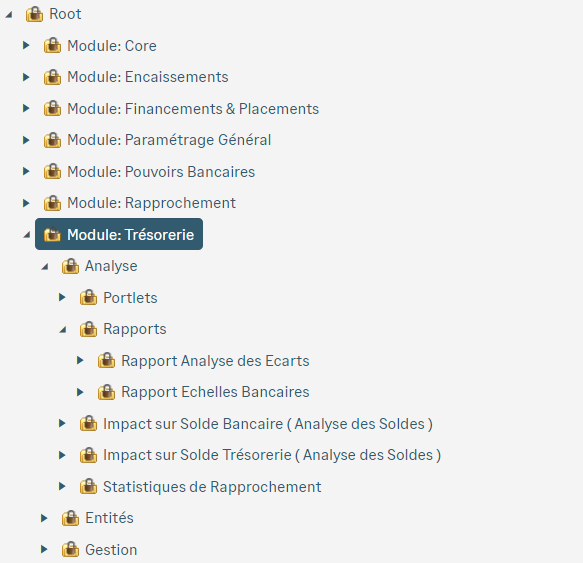
In the Security tab, expand the treeview to access this level: Module — Analysis — Reports.
-
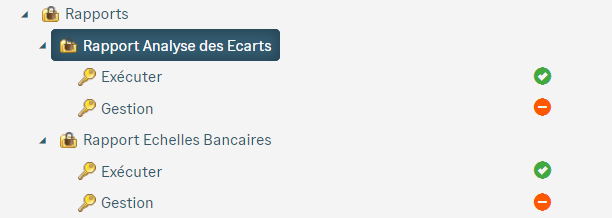
Expand the report for which you want to control the access.
On the line corresponding to the Management right (creation and modification of filters, views and templates), or on the one corresponding to the Execution right (report generation), click the icon to authorize the right (tick on green background), or click twice to forbid it (wrong-way sign). The question mark icon shows that you policy ignores the right marked.
-
Click Save.
You can now use this security policy dedicated to reports to manage the access rights of a specific role, using the procedure described above, as of step 6.


